
Quick answer: Shopify's built-in blog (called "Shopify Blog" or sometimes still referenced as "Timeline" in older themes) runs on Shopify's own servers, so adding one doesn't slow down your store — it's part of the same platform, not a bolt-on app. The real risks to speed and SEO come from heavy blog apps, unoptimized images, and bloated embed scripts, not the blog feature itself. Set it up natively, keep posts lightweight, and automate the writing so you're not stuck publishing manually every day.
Key takeaways
- Shopify's native blog engine doesn't add page weight to your product pages or checkout — it's a separate content type on the same infrastructure, according to Shopify's own platform documentation.
- Blogs hosted on apps with heavy third-party scripts are the usual cause of slowdown, not Shopify's built-in blog itself.
- Shopify blogs support custom permalinks, categories (called "blog" groupings), and tags — all configurable from Settings without touching theme code.
- Publishing daily by hand takes real time; automated tools like Segeo connect to Shopify through a Git repo setup and handle topic selection and publishing without manual uploads.
Does blogging actually help a Shopify store's SEO?
Yes, but only if the posts target real search intent and get published consistently — a single blog post won't move the needle, and neither will ten posts published once and abandoned. Google has said for years that fresh, relevant content gives it more to index and rank, and a blog is the easiest way to keep adding pages that target buyer questions your product pages can't answer on their own.
There's a second reason blogging matters now that didn't exist a few years ago: AI assistants. Tools like ChatGPT, Perplexity, and Google's AI Overviews pull answers from pages that clearly address a specific question — not from a homepage or a product listing. A Shopify store selling ceramic mugs has no natural page for "best mug for keeping coffee hot for 4 hours," but a blog post does.
That said, blogging helps sales in specific situations, not universally:
- It helps when your products answer real questions people search before buying (care instructions, sizing, comparisons, use cases).
- It helps when you're in a competitive niche and need more indexed pages to compete for long-tail searches.
- It doesn't help much if posts are generic ("Top 10 Gift Ideas") with no connection to what you sell or who's searching.
- It doesn't help at all if you publish five posts and go quiet for three months — both Google and AI crawlers favor sites that show ongoing activity.
We covered why consistency matters more than people expect in How Often Should I Blog? Daily Beats Weekly for SEO — the short version is that stale blogs stop getting crawled as often, which slows down everything else you publish after.
Built-in Shopify blog vs. a separate hosted blog: what actually affects speed
The built-in Shopify blog is faster and simpler for most stores — it loads on Shopify's CDN just like your product pages, with no separate hosting, DNS, or SSL setup required. A hosted external blog (on WordPress, for example) can offer more flexibility for formatting and plugins, but it adds a second system to maintain, a second place to watch for downtime, and often a subdomain or folder redirect that needs to be configured correctly or you lose SEO value entirely.
Here's the trade-off laid out plainly:
| Factor | Shopify native blog | External hosted blog |
|---|---|---|
| Page speed | Same CDN as your store, no extra load | Depends on host; can be faster or slower |
| Setup time | Minutes, no DNS changes | Hours; subdomain/folder + redirect setup |
| SEO continuity | Automatic — same domain | Requires correct subdomain/subfolder setup |
| Maintenance | None — Shopify handles updates | You manage hosting, security, backups |
| Design flexibility | Limited to theme's blog template | Full control over layout and plugins |
| Cost | Included in your Shopify plan | Separate hosting fee |
For the overwhelming majority of Shopify stores, native wins. The only real case for going external is if you need blog functionality Shopify's theme simply can't support — complex content types, membership gating, or a design system totally different from your store.
Don't skip this: if you do go external, put the blog on a subfolder of your main domain (like yourstore.com/blog), not a separate subdomain (blog.yourstore.com). Search engines treat subdomains as more separate from your root domain, which can weaken the SEO benefit you were trying to get in the first place.
Step-by-step: turning on and configuring Shopify's native blog
Setting this up takes about fifteen minutes if you're doing it manually. Here's the order that avoids rework later.
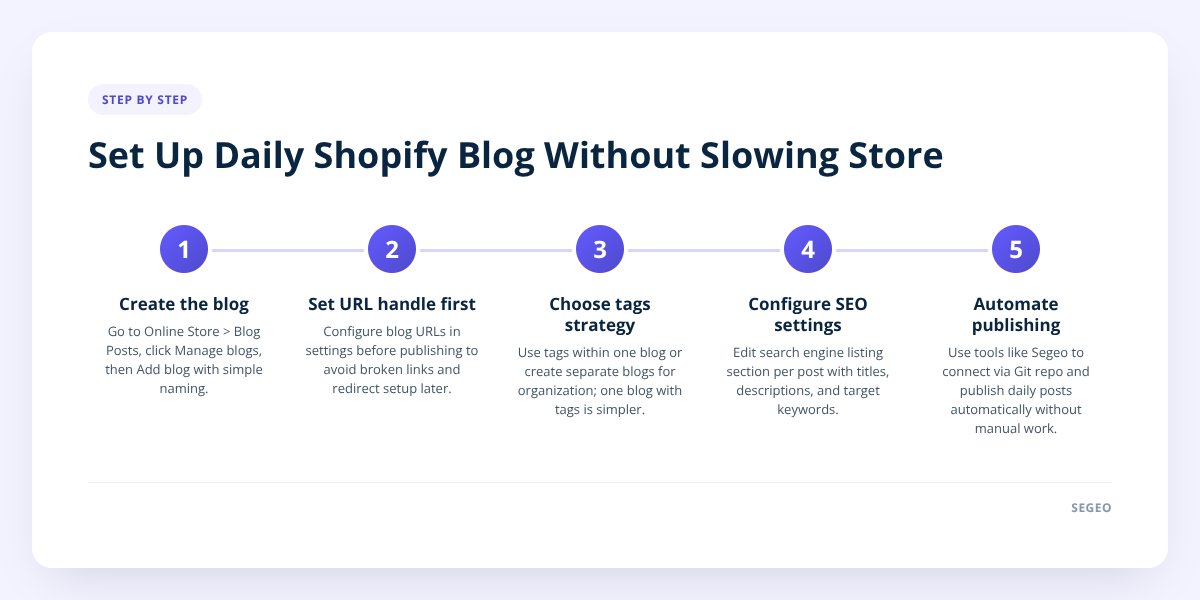
Step 1: Create the blog. Go to Online Store > Blog Posts in your Shopify admin, then click "Manage blogs" and "Add blog." Name it something simple — "News" or "Blog" works fine; avoid cute names that don't tell search engines or customers what it is.
Step 2: Set the URL handle before you publish anything. Shopify defaults blog URLs to /blogs/news or similar. You can edit this in the blog's settings before your first post goes live. Changing it after you've built up posts means every existing URL breaks unless you set up redirects, so get this right on day one.
Step 3: Decide on categories and tags. Shopify doesn't have true "categories" like WordPress — instead, you can create multiple blogs (e.g., "Buying Guides," "Behind the Scenes") or use tags within a single blog to group related posts. For most small stores, one blog with consistent tags is simpler to maintain than several separate blogs.
Step 4: Configure the blog's SEO settings per post. Each post has its own "Search engine listing" section where you set the page title and meta description. Don't leave these blank — Shopify will auto-generate them from your content, and the result is often clunky.
Step 5: Add the blog to your store navigation. Go to Online Store > Navigation and add a link to your blog in the main menu. A blog nobody can find from your homepage does very little for you, no matter how good the posts are.
Step 6: Check your theme's blog template. Preview a sample post and confirm images, author name, and date display correctly. Some older or heavily customized themes hide the publish date by default — worth fixing, since both readers and search engines use it as a freshness signal.
How to automate Shopify blog publishing without manual uploads
Automating the actual writing and publishing is where most store owners hit a wall — Shopify doesn't have a native "auto-write and publish" feature, so this has to come from a connected tool. The mechanics matter here: a tool needs to create the post, write a title and meta description, format it for the blog template, and publish it on schedule without you logging in each day.
Doing this by hand has a real cost that's easy to underestimate. Writing one genuinely useful, on-topic post a day — researching what to say, drafting it, finding or making an image, formatting it, writing the SEO fields, and hitting publish — easily eats an hour, even for a fast writer. Multiply that by 365 days and you're looking at a part-time job that most store owners don't have room for.
This is the specific gap Segeo is built to close for Shopify stores. It connects to Shopify (along with Wix and custom or static sites) through a Git repo, which the Segeo team sets up with you, and from there it publishes a finished post — not a draft — to your blog every day. Topics come from live trend data and real local-intent keywords for your industry, so you're not stuck brainstorming ideas or running keyword research yourself. It also writes in your store's own voice, pulled from your existing site at setup, and checks every new topic against the last 30 posts so you don't end up with five variations of the same article.
If you want full control before anything goes live, review mode holds posts for your approval. If you'd rather it just run, it runs — and a daily email tells you what was published and why.
A few things worth confirming before you connect any automation tool to your store:
- Confirm the tool publishes finished posts, not just drafts sitting in a dashboard waiting for you.
- Confirm it writes unique meta titles and descriptions per post — not a copy-pasted template.
- Confirm it checks for topic overlap with what you've already published, so your blog builds breadth instead of repeating itself.
- Confirm image files are compressed before upload — oversized blog images are one of the few ways a blog genuinely can slow a store down.
- Confirm you can edit, pause, or unpublish any post after it goes live.
If you're comparing tools beyond Shopify's own ecosystem, How to Choose a Blog Automation Tool That Actually Works goes through the criteria in more depth.
The setup mistakes that quietly hurt SEO or site speed
Most Shopify blog problems trace back to five mistakes, and all five are avoidable:
- Uploading full-resolution images straight from a camera or phone. A 6MB photo in a blog post adds real load time. Compress images before upload or use a tool that does it automatically.
- Installing a heavy third-party blog app on top of the native blog instead of using what Shopify already includes. Extra apps mean extra scripts, and extra scripts mean slower pages.
- Changing the blog's URL structure after publishing dozens of posts, breaking every indexed link without setting up 301 redirects.
- Leaving meta titles and descriptions on autopilot so every post looks the same in search results and gives Google nothing specific to show searchers.
- Publishing in bursts and then going silent. Ten posts in one week followed by two months of nothing signals inconsistency to both search engines and readers — Why Publishing Daily Doesn't Guarantee AI Search Visibility explains why consistency and quality both have to be present, not one or the other.
None of these mistakes are about Shopify's blog feature being weak. They're about how it gets used — which is exactly why automating the repetitive parts (image handling, meta fields, consistent scheduling) removes most of the risk before it starts.
What to do next
Turn on your Shopify blog, lock in the URL structure, and add it to your navigation this week — that part takes fifteen minutes and nothing about it will need redoing later. The harder part is keeping it fed with useful, on-topic posts every single day without that becoming your new part-time job.
If you'd rather not write and publish manually, see how Segeo connects to your store and check current plans on the pricing page — it's one plan, from $89 a month, covering the writing, the images, and the publishing.
Checklist: Setting up a daily blog on Shopify
- Create your blog under Online Store > Blog Posts and name it clearly.
- Set the URL handle before publishing your first post.
- Decide whether to use one blog with tags or multiple blogs for separate topics.
- Fill in the SEO title and meta description for every post — don't leave them on auto-generate.
- Add the blog link to your main store navigation.
- Preview your theme's blog template to confirm images and dates display properly.
- Compress all images before upload to protect page speed.
- Connect an automation tool if you want daily posts without manual writing and uploading.
- Turn on review mode if you want to approve posts before they go live.
